 Photo Converter
Converting one photo is a favor; converting sixty is a job. A vacation album for a Windows relative, a semester of screenshots for a report, a product shoot for a listing: real conversion tasks come in batches, and most methods on iPhone are stubbornly one-at-a-time.
Why Batch Is the Whole Point
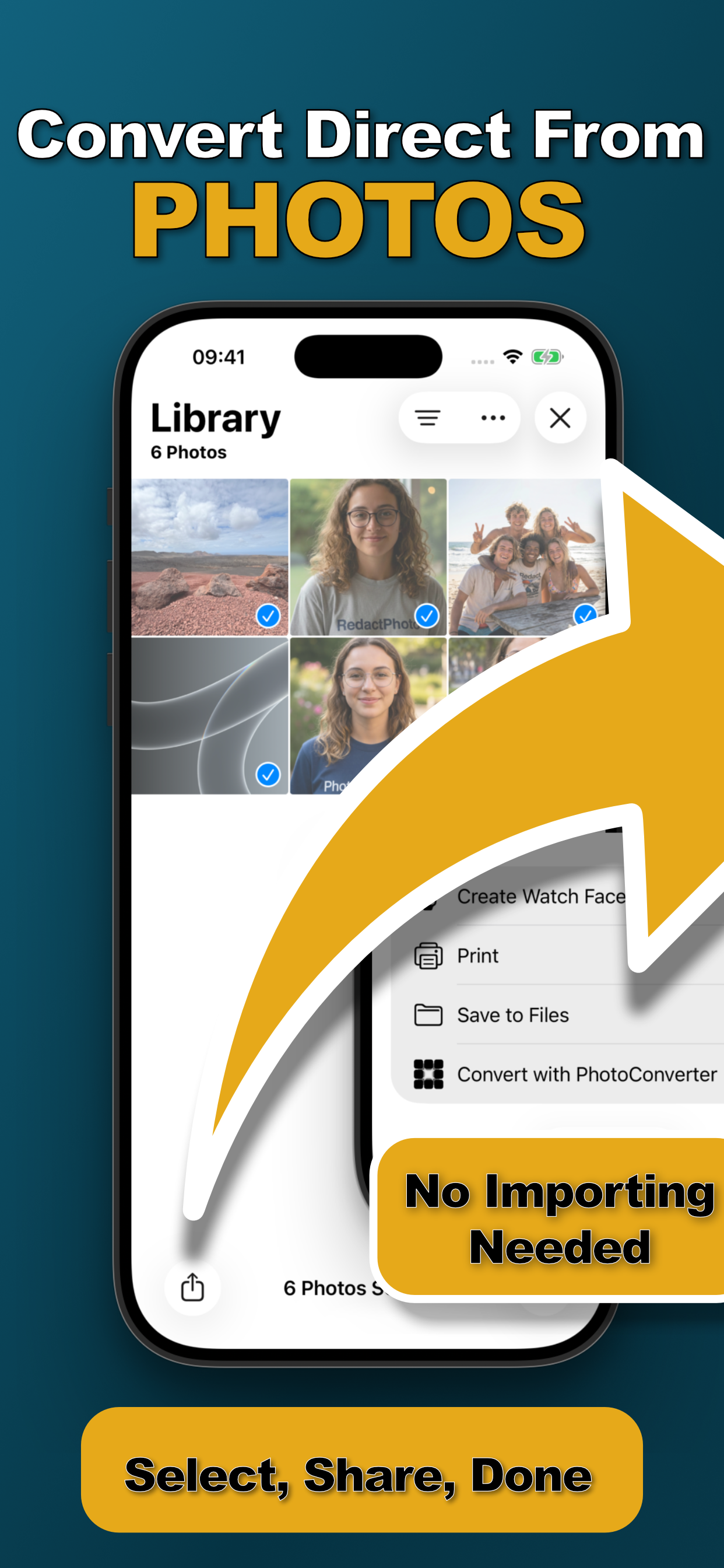
The Files-app trick, share-sheet saves, and most free apps make you repeat the dance per photo, or dump you into an importer that copies your library around. An action extension flips the model: your selection in Photos is the batch, and one settings screen governs all of it. Sixty photos take barely longer than one.
Batch Convert (Step by Step)
- Select the whole batch in PhotosTap Select and drag across the grid, or open an album and select all. Dozens of photos are fine.
- Share to Photo ConverterTap Share → “Convert with PhotoConverter.” The entire selection loads at once.
- Set the options onceFormat (JPEG, PNG, HEIC, PDF), size preset or target file size, quality, metadata removal: one configuration for the whole set.
- Convert in one passTap Convert and let it run, everything is processed on-device and saved back together.
Combine Jobs in One Pass
Batch is where combinations pay off: convert an album to JPG and resize it for email and strip the GPS data, one pass, three jobs. The most common combo, HEIC to JPG in bulk, is covered in the flagship guide.
Try it on your own photos
Photo Converter is free to download with a 3-day free trial, convert your first batch in the next two minutes, without anything leaving your phone.
Get Photo Converter on the App Store