On-device AI finds every face and line of text in your photo. You choose how it disappears, then share a copy that keeps your people, places, and paperwork private.
Redacting a photo means trusting a tool with the exact thing you're trying to hide. Redact Photo earns that trust the only way that counts: nothing ever leaves your iPhone.
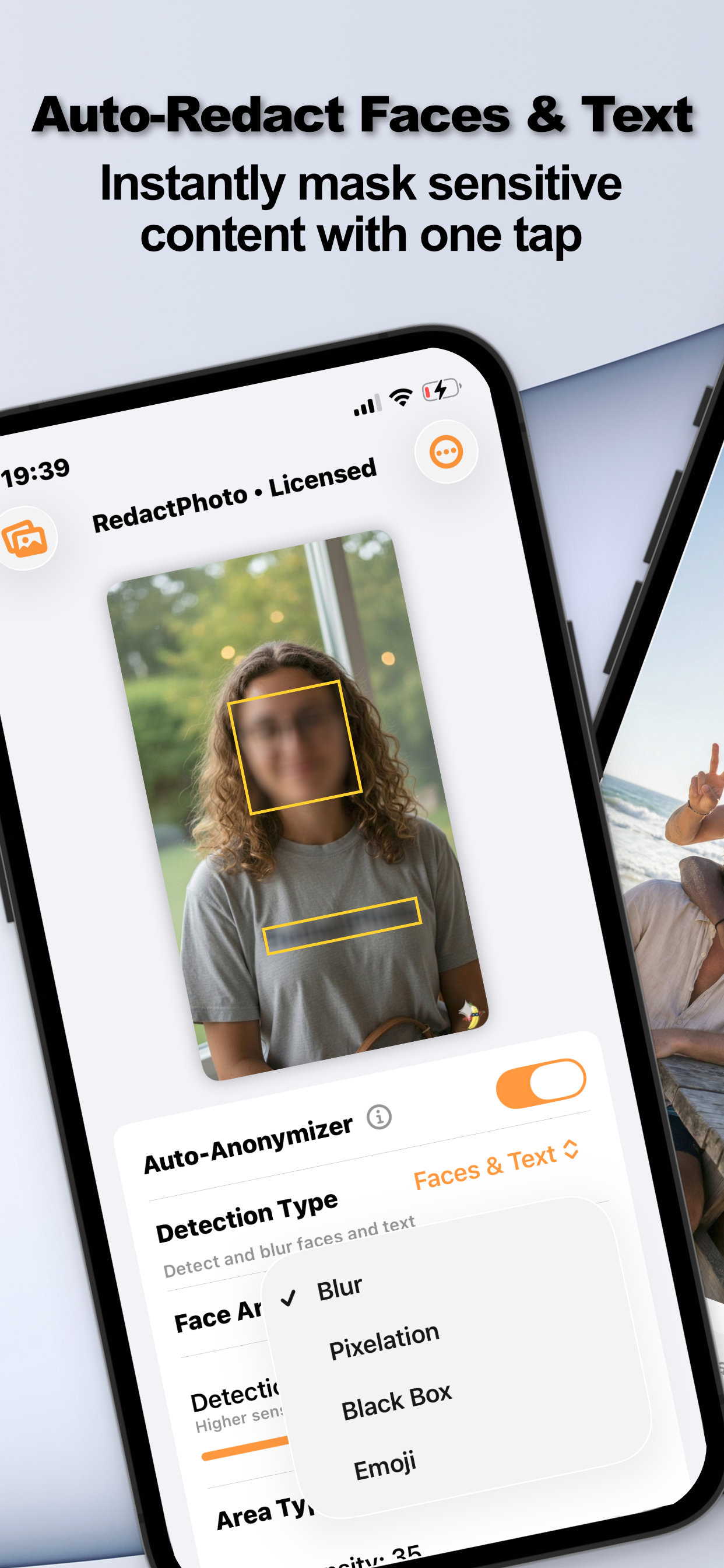
On-device AI finds faces, text, or both: with a sensitivity slider and detection preview, so nothing slips through.
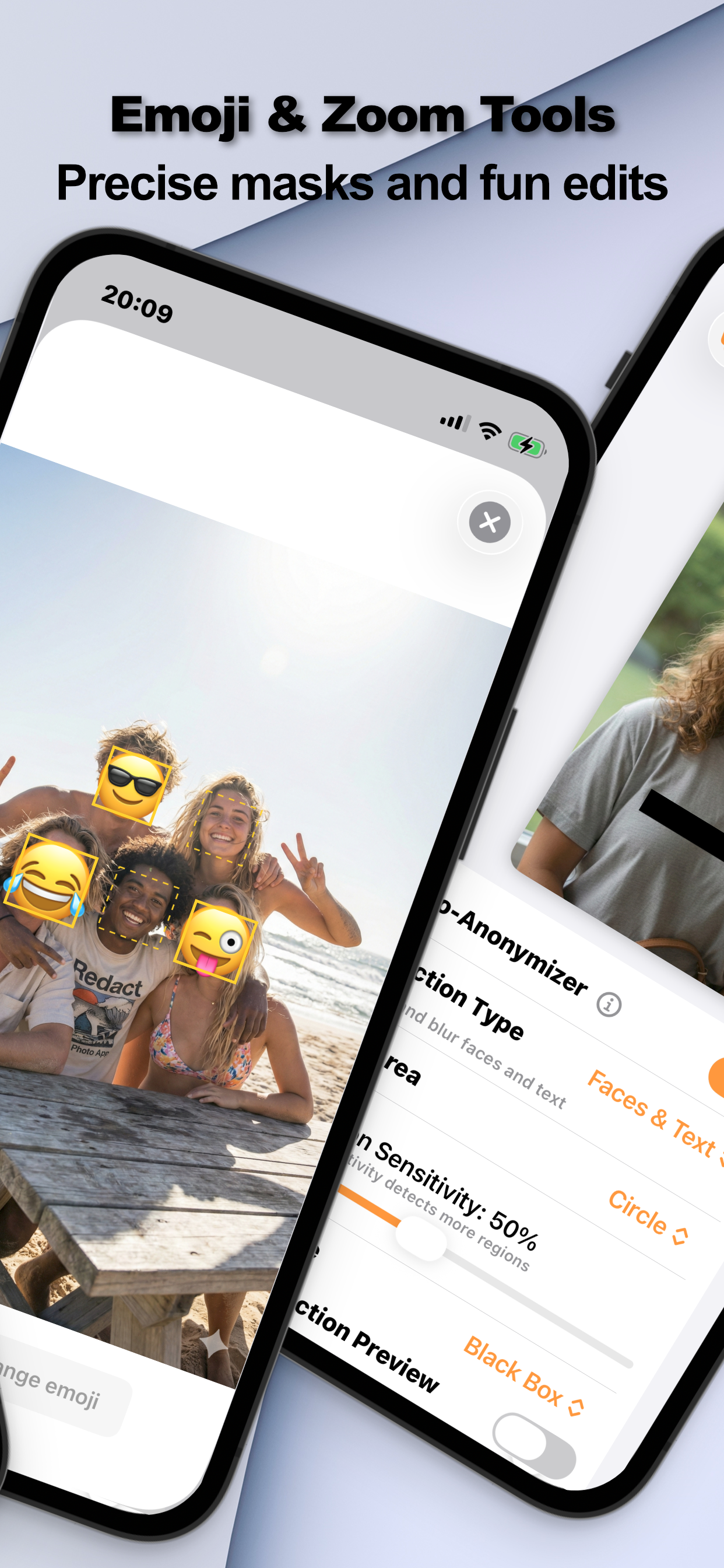
Blur, pixelation, black box, or emoji: in circles, squares, or rectangles. Manual selection with zoom for pixel-perfect edits.
Masks are flattened into the exported image, no removable layers. For truly sensitive text, Black Box leaves nothing to recover.
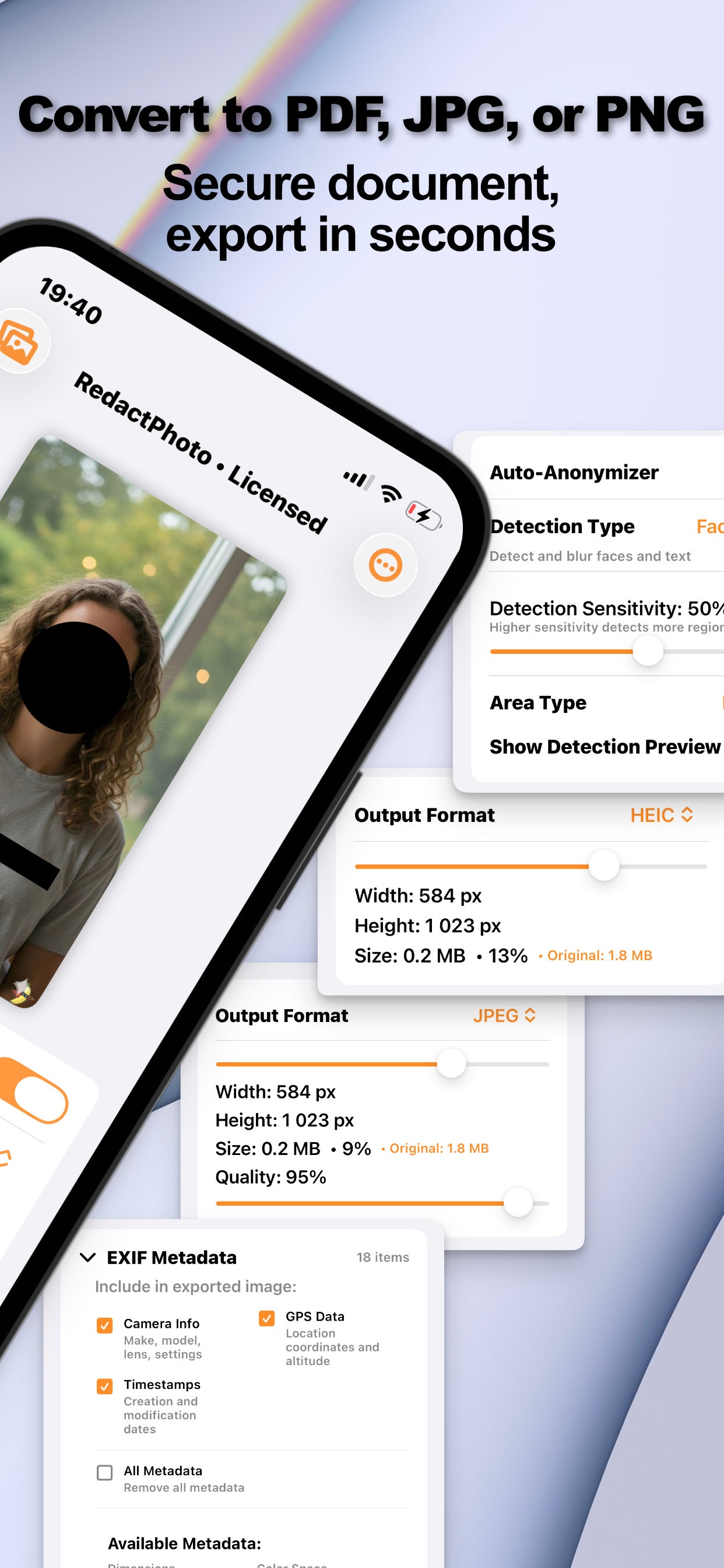
Strip EXIF, GPS, and timestamps in the same pass, then export as JPG, PNG, HEIC, or a secure PDF.
No “Pro” tiers, no locked styles. Auto-detection, all four masks, metadata scrubbing, and PDF export: in every plan.
From auto-detected faces to black-boxed documents, here's what one-tap photo privacy looks like.
No manual tracing, no upload sites, no “trust us”: the whole job happens on your phone.
Open your photo and flip on the Auto-Anonymizer. On-device AI finds faces, text, or both: tune the sensitivity and preview what it caught, or select regions manually with zoom.
Blur for subtlety, pixelation for the broadcast look, black box for real secrets, emoji for fun: in circular or rectangular areas, per face or per region.
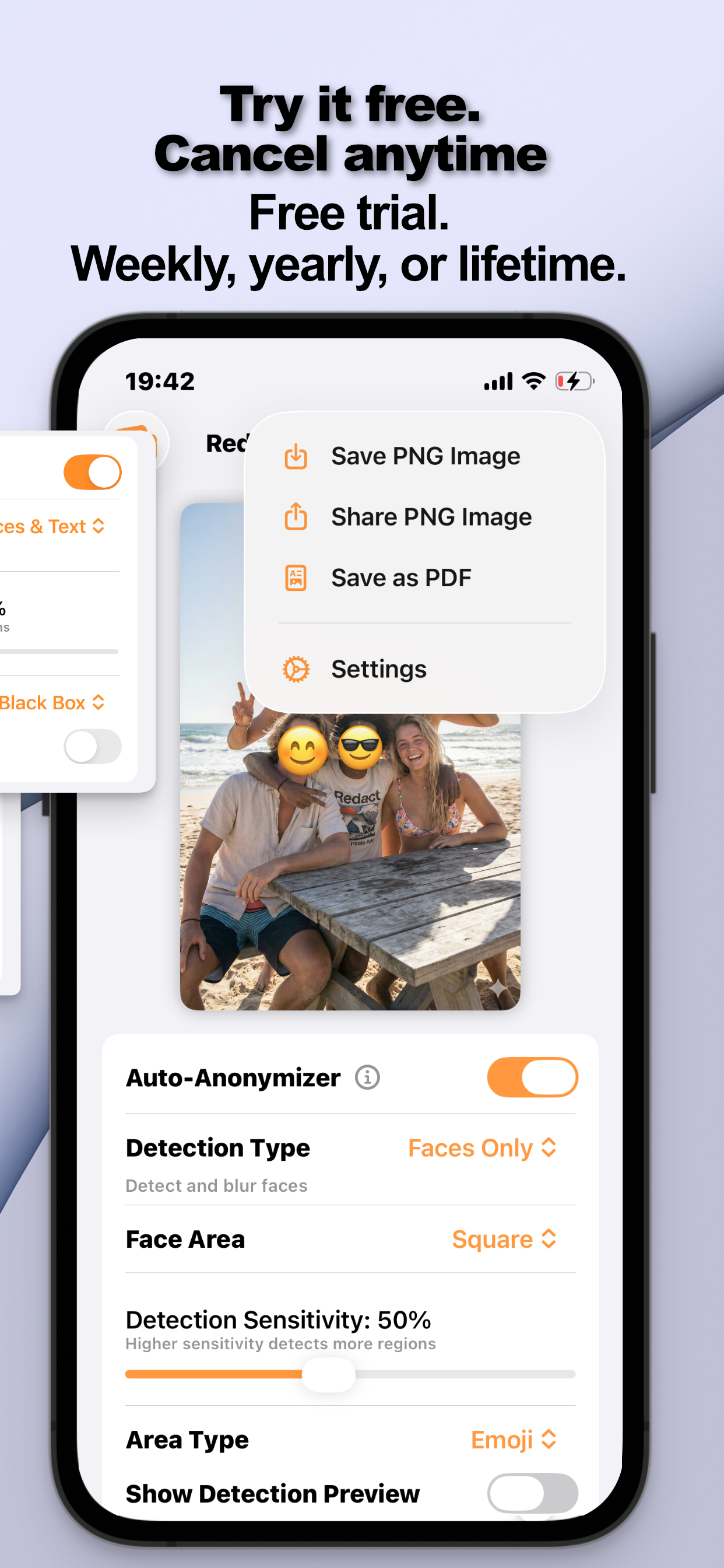
Strip EXIF and GPS metadata in the same pass, then save as PNG, JPG, HEIC, or a secure PDF: resized to fit wherever it's going.
Step-by-step answers to the most-searched photo privacy questions, faces, text, documents, and what actually keeps secrets safe.
The fastest way to blur one face or every face, automatically, on-device.
Read the guide → FacesLet AI find everyone at once, sensitivity control, preview, one-pass masking.
Read the guide → ParentsShare the moment, not the face: blur, circle-mask, or emoji for kids' photos.
Read the guide → EmojiAuto-place emojis on every detected face, pick the emoji, keep the vibe.
Read the guide → MarketplaceSelling a car or posting street shots, mask plates with precision zoom.
Read the guide → TextAuto-detect names, numbers, and addresses in images, and hide them all.
Read the guide → ScreenshotsBank apps, chats, emails: censor the private parts before you share.
Read the guide → DocumentsBlack-box IDs, card numbers, and signatures on photographed paperwork.
Read the guide → DocumentsRedact first, then export a secure PDF for work, claims, and applications.
Read the guide → StylesThe classic broadcast mosaic, where it works and how to apply it right.
Read the guide → SecurityWhat security research says about reversing blur, and when to use a black box instead.
Read the guide → PrivacyRedaction + metadata scrubbing: the two-step routine for truly clean photos.
Read the guide →Quick answers about blurring, censoring, and anonymizing photos on iPhone.
Open the photo in Redact Photo and turn on the Auto-Anonymizer, on-device AI detects every face and applies your chosen mask in one tap. Manual selection with zoom is there for anything else. Learn More →
Yes. The AI detects all faces in a group photo at once, raise the sensitivity to catch more, preview the regions, and mask everyone in a single pass. Learn More →
Switch detection to Text (or Faces & Text) and the app finds text regions automatically, names, numbers, addresses. Mask them and export a clean copy. Learn More →
Not always, researchers have shown light blur and coarse pixelation on text can sometimes be reversed. For real secrets use Black Box: fully opaque, flattened into the export, nothing to recover. Learn More →
Auto-detect faces, then pick the mask that fits the moment: a soft blur, a circular mask, or an emoji. Share the memory, keep the face off the public internet. Learn More →
Yes, choose the Emoji style and every detected face gets the emoji you pick. Works in the combined Faces & Text mode too. Learn More →
Draw a rectangle over the plate with manual selection (zoom in for precision) and apply blur, pixelation, or a black box: perfect for marketplace and car-sale listings. Learn More →
Yes, after redacting, choose Save as PDF. Ideal for censored documents and paperwork; JPG, PNG, and HEIC with resizing are also available. Learn More →
Yes. The EXIF panel shows what the file carries, GPS, camera info, timestamps, and you can strip any or all of it from the export. Learn More →
Free to download, with a fully unlocked 3-day free trial on subscriptions. Continue weekly or annually, or buy lifetime access once: every plan unlocks everything. Learn More →
The next photo you share doesn't have to reveal faces, addresses, or where it was taken. Fix it in one tap, on your phone, not someone's server.

 Redact Photo