 Photo Converter
“File exceeds maximum size.” Government portals, job applications, university systems, email attachments, Discord without Nitro: everything has a cap, the caps are all different, and your iPhone's photos are all too big for them. What you need isn't a generic “compress” button; it's a way to hit a specific number.
Why Hitting an Exact Size Is Hard
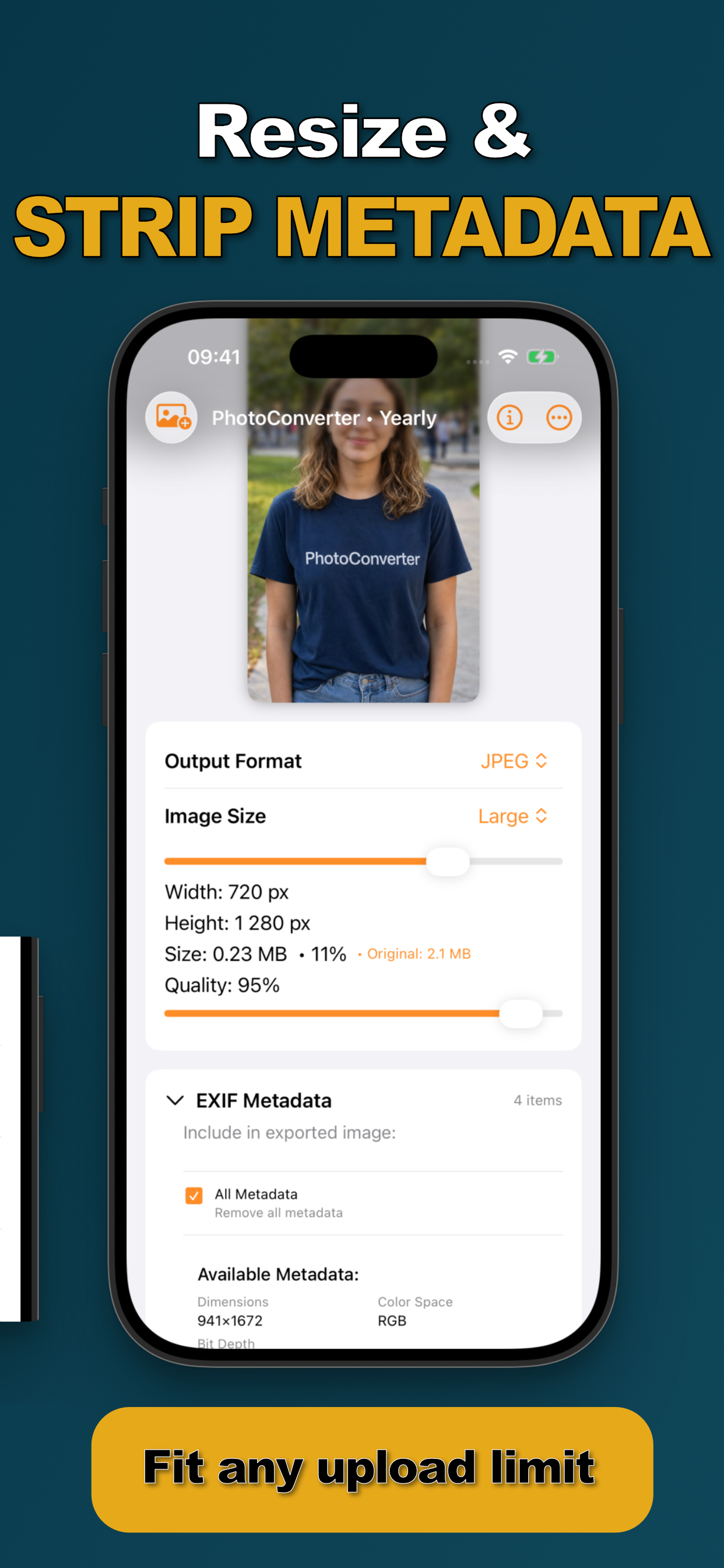
Compression is unpredictable: the same settings produce different sizes on different photos, because complexity drives file size. That's why blind “compress” apps make you guess and retry. The fix is feedback, Photo Converter shows the output size live as you adjust dimensions and quality, so you converge on “just under 1 MB” in seconds, no trial-and-error uploads.
Get Under the Limit (Step by Step)
- Share the photo(s) to Photo ConverterSelect in Photos → Share → “Convert with PhotoConverter.” Works for a single ID scan or a batch of listing photos.
- Check the current sizeThe panel shows the original (say, 2.1 MB) and the live output size for the current settings.
- Adjust size and quality until it fitsStep down the size preset or dimensions, nudge the quality slider, and watch the output: 0.23 MB · 11% of original, for example: until you're under the cap.
- Convert and uploadSave the compressed copy and upload it. Your full-quality original stays in your library untouched.
How Small Is Too Small?
For documents and forms, readability is the bar: text stays legible surprisingly far down. For photos people will actually look at, keep quality at 80%+ and shrink dimensions first; a 1200-px-wide photo at 85% quality almost always beats a full-size photo at 40%. JPEG compresses photos best, if the source is a PNG screenshot, convert it to JPG in the same pass. PDFs for paperwork have their own guide.
Try it on your own photos
Photo Converter is free to download with a 3-day free trial, convert your first batch in the next two minutes, without anything leaving your phone.
Get Photo Converter on the App Store