 Photo Converter
You sent the photos. They got “this file can't be opened.” Now you're both googling. This is one of the most common iPhone-to-PC frustrations, and it has a two-minute fix: on your end, not theirs.
Why Windows Can't Open HEIC
HEIC uses HEVC compression, which is patent-encumbered, so Microsoft doesn't ship the decoder with Windows. Depending on the version, your recipient is looking at a broken thumbnail or a prompt to buy a codec extension from the Microsoft Store. Some apps (old Office builds, upload portals, corporate tools) won't accept HEIC even with codecs installed.
Fix It at the Source, Not the Destination
You could walk every recipient through installing codecs, or you could send JPG, which opens on every Windows, Android, and web platform made in the last twenty years. Converting on the iPhone before sending fixes it for everyone you'll ever send photos to, permanently.
Send iPhone Photos Windows Can Open (Step by Step)
- Select the photos you're about to sendIn the Photos app, select everything going to the PC user: the whole album if needed.
- Tap Share → “Convert with PhotoConverter”The converter opens inside the share sheet with your selection loaded.
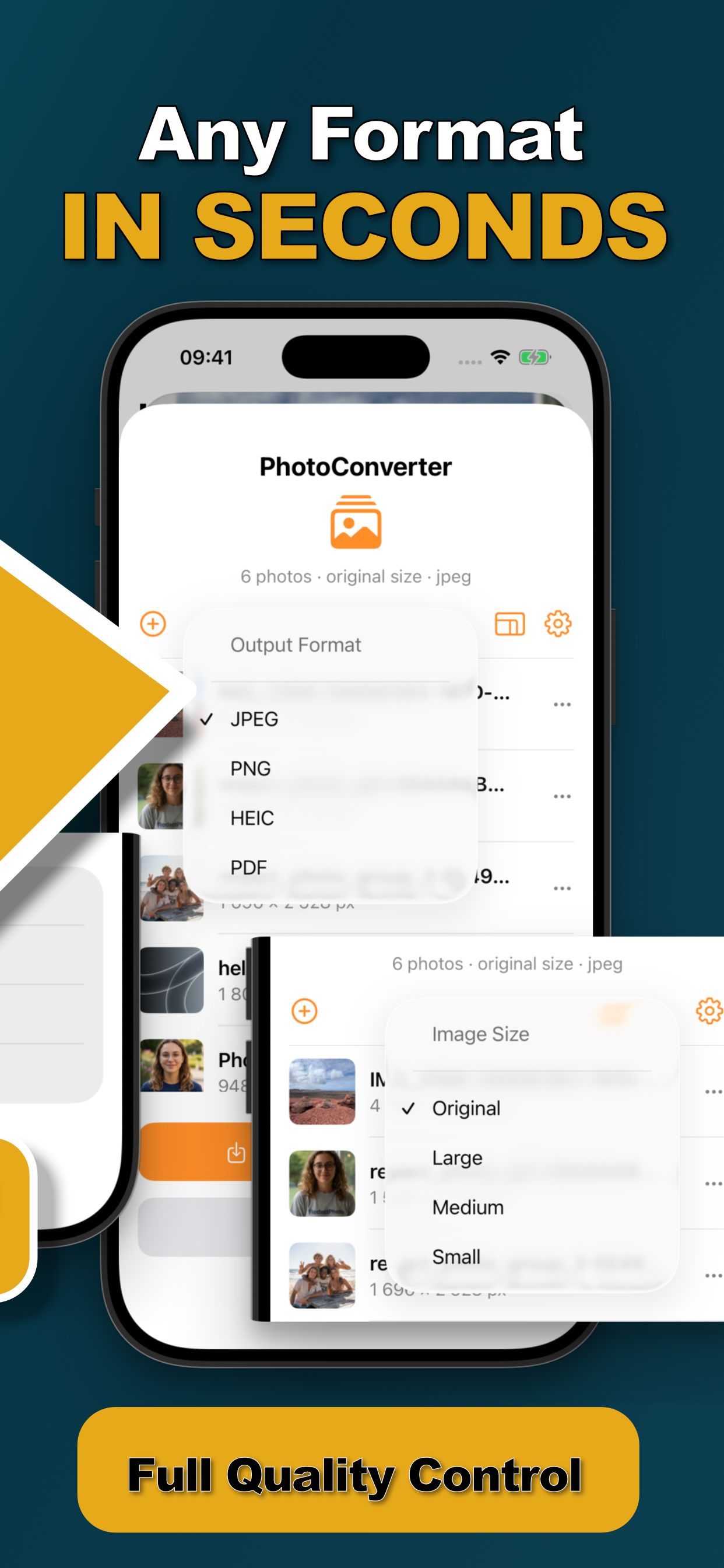
- Choose JPEG and convertJPEG is the universal choice for Windows. Keep original size and quality for full-resolution photos.
- Send the JPGsShare the converted copies by email, WhatsApp, Drive: whatever you use. They'll open on the other end, no codecs required.
Sending a Whole Album?
Batch conversion means a 60-photo album is still one pass, and if the email bounces for size, you can compress to a target size in the same step.
Stop It Happening Again
If most of your photos end up on PCs, you can also set the iPhone camera to shoot JPG going forward, and convert the HEIC library you already have in batches.
Try it on your own photos
Photo Converter is free to download with a 3-day free trial, convert your first batch in the next two minutes, without anything leaving your phone.
Get Photo Converter on the App Store