 Photo Converter
iOS can crop a photo, but it can't actually resize one: there's no built-in way to say “make this 720 pixels wide” or “make this smaller than 500 KB.” Mail's four vague size options at send time are as close as Apple gets. When a listing, a print shop, or a form wants specific dimensions, you need a real resizer.
Dimensions vs. File Size, Know Which One You Need
“Resize” means two different things. Dimensions (pixels) matter for display: avatars, banners, print DPI, listing requirements. File size (MB) matters for uploads: email caps, form limits, messenger compression thresholds. Photo Converter handles both, size presets and exact dimensions for the first, a target file size with live preview for the second (that one has its own guide).
Resize Photos (Step by Step)
- Select the photos to resizeOne image or a whole batch, the same dimensions will apply across the selection.
- Share to Photo ConverterTap Share → “Convert with PhotoConverter.”
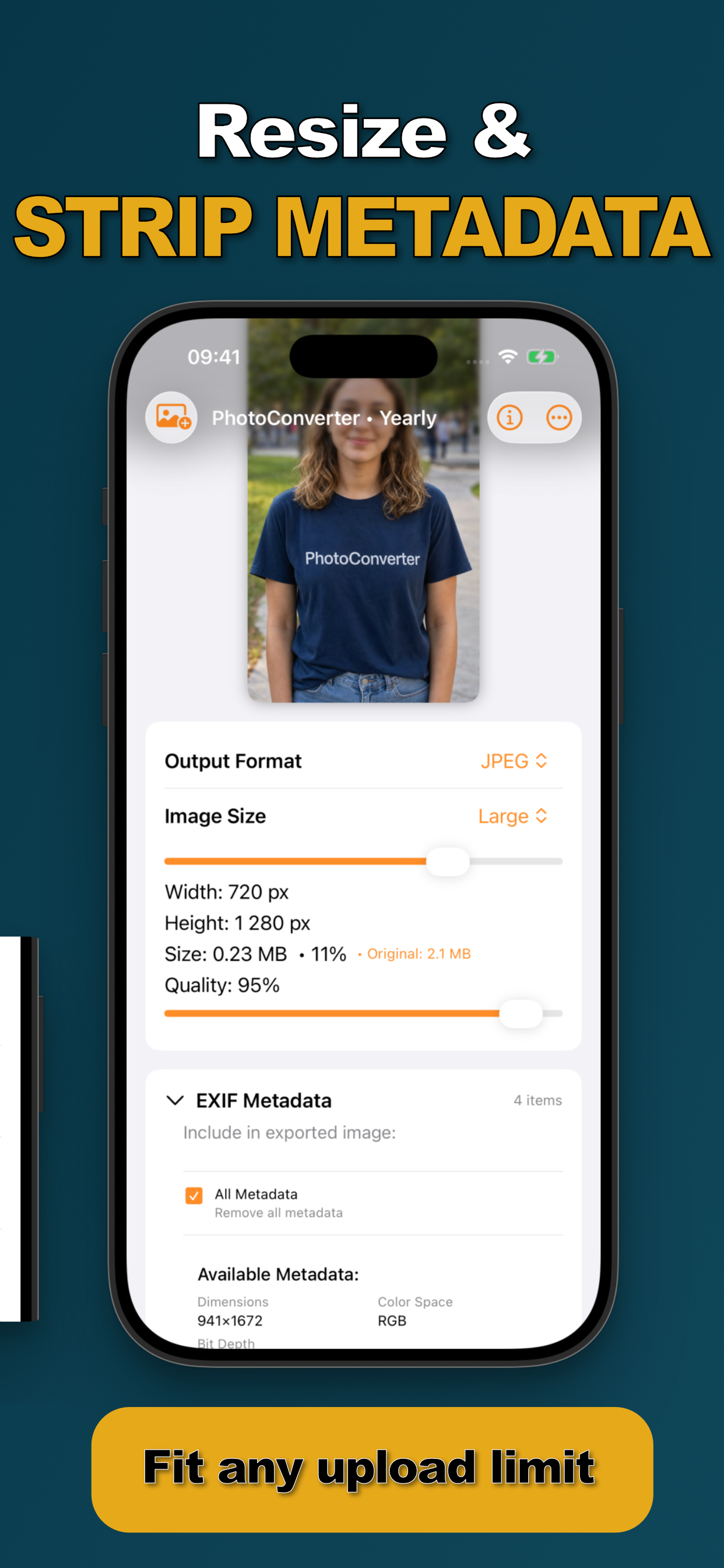
- Choose the sizePick Original, Large, Medium, or Small, or dial in exact pixel dimensions. The width, height, and resulting file size are shown live (e.g. 720 × 1280 px, 0.23 MB).
- Convert and saveThe resized copies are saved back to your library; your full-resolution originals are never modified.
Quality Stays in Your Hands
Resizing pairs with the quality slider: at 95% quality a downsized photo still looks crisp, and you can watch the megabytes fall as you adjust. If the photo is also in the wrong format, change that in the same pass: resize + PNG to JPG is a classic screenshot combo.
Try it on your own photos
Photo Converter is free to download with a 3-day free trial, convert your first batch in the next two minutes, without anything leaving your phone.
Get Photo Converter on the App Store