 SmartMerge
Be honest about the first three seconds of every voice memo you've ever recorded: a thump as the phone goes down, a rustle, maybe a “okay, so…”. And the last two seconds are you reaching for the stop button. Multiply that by every clip in a long merge and you've got minutes of noise nobody wants.
Manual Trimming Doesn't Scale
Apple's Voice Memos can trim, one memo at a time, dragging yellow handles on a tiny waveform. For one clip, fine. For a week of lectures or a stack of podcast segments, it's an evening of fiddly edits. Auto-Trim replaces all of it with a single setting applied to every clip in the batch.
Auto-Trim Every Clip in One Pass (Step by Step)
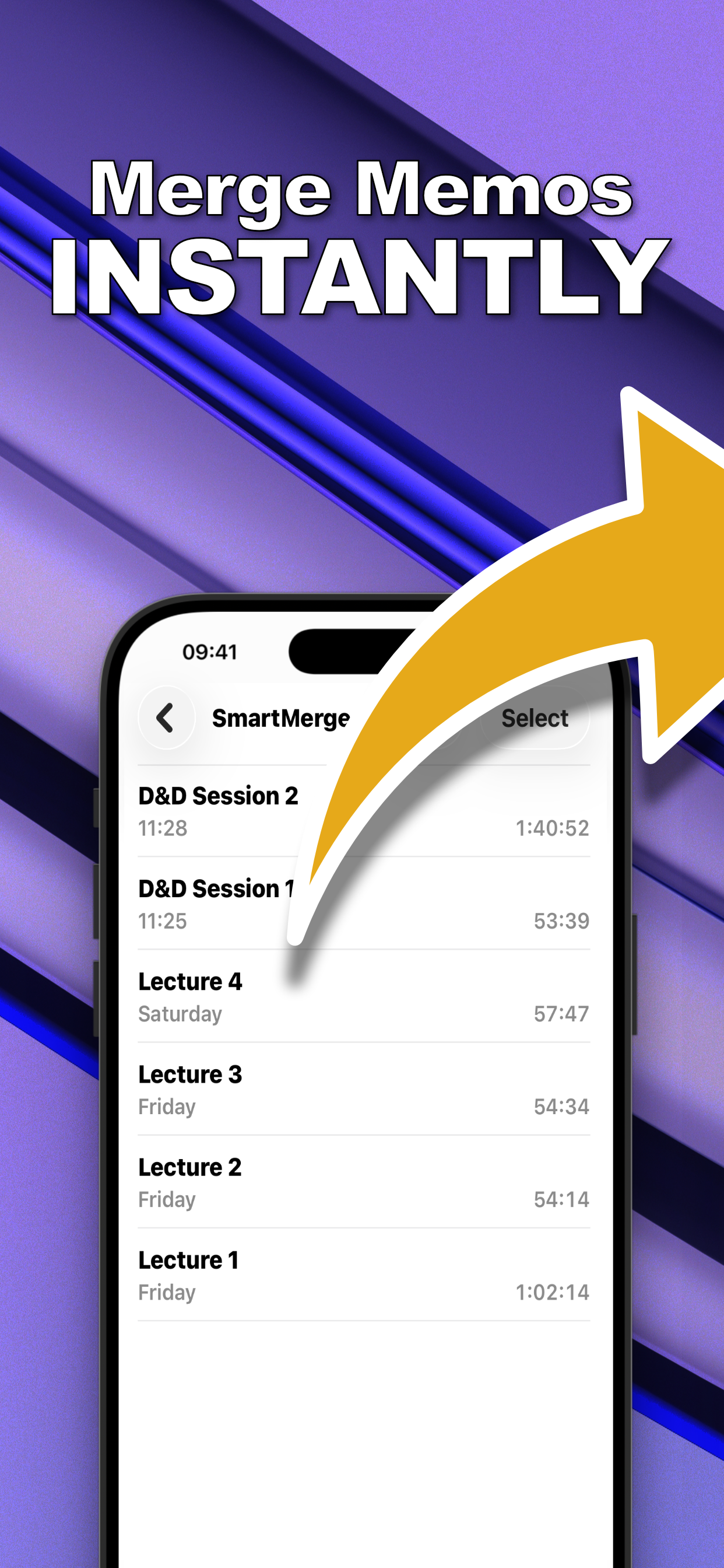
- Select the recordings to mergeIn Voice Memos or Files, select your clips and share them to SmartMerge with “Merge with SmartMerge.”
- Turn on Auto-TrimChoose how much to cut from each clip's edges: 2, 3, or 5 seconds from the start and end of every recording in the queue.
- Review the orderDrag clips into sequence, trimming and ordering happen together, before anything is exported.
- Merge clean audioTap Merge. The output skips every fumble and dead-air gap at the joins, so clips flow into each other naturally.
Choosing 2, 3, or 5 Seconds
- 2 seconds: tight recordings where you start talking quickly, interviews, dictation.
- 3 seconds: the everyday default; covers the classic put-the-phone-down thump.
- 5 seconds: chaotic starts, game tables, lecture halls filling up, street recordings.
Auto-Trim pairs naturally with a merge: the same pass that joins a week of lectures also cleans every seam between them.
Try it on your own recordings
SmartMerge is free to download with a fully unlocked 3-day free trial, merge your first files in the next two minutes.
Get SmartMerge on the App Store