 SmartMerge
M4A is the format your iPhone actually records in, every voice memo is an M4A file. So when people search for a way to “merge M4A files,” they usually mean: join my recordings without some tool silently converting them to a lower-quality MP3 along the way.
What Is M4A, and Why Does Your iPhone Use It?
M4A is an audio container using AAC compression, better quality than MP3 at the same file size, which is why Apple uses it for Voice Memos, Music, and most iOS audio. The catch: many free “audio joiner” tools convert M4A to MP3 before merging, degrading your audio in a way you can't undo.
Merge M4A Files on iPhone (Step by Step)
- Gather your M4A filesYour files can come from anywhere: select memos in Apple Voice Memos and tap Share, or share M4A files straight from the Files app, Mail, or Messages to SmartMerge.
- Choose “Merge with SmartMerge”Pick the SmartMerge action in the share sheet. All selected M4A files open in the merge queue instantly.
- Order the clips and set Auto-TrimDrag the files into the sequence you want and optionally trim 2, 3, or 5 seconds from each clip's edges to remove clicks and dead air.
- Merge and exportTap Merge. SmartMerge joins the M4A audio without re-encoding artifacts, adds a chapter marker per clip, and hands you one file to share or save.
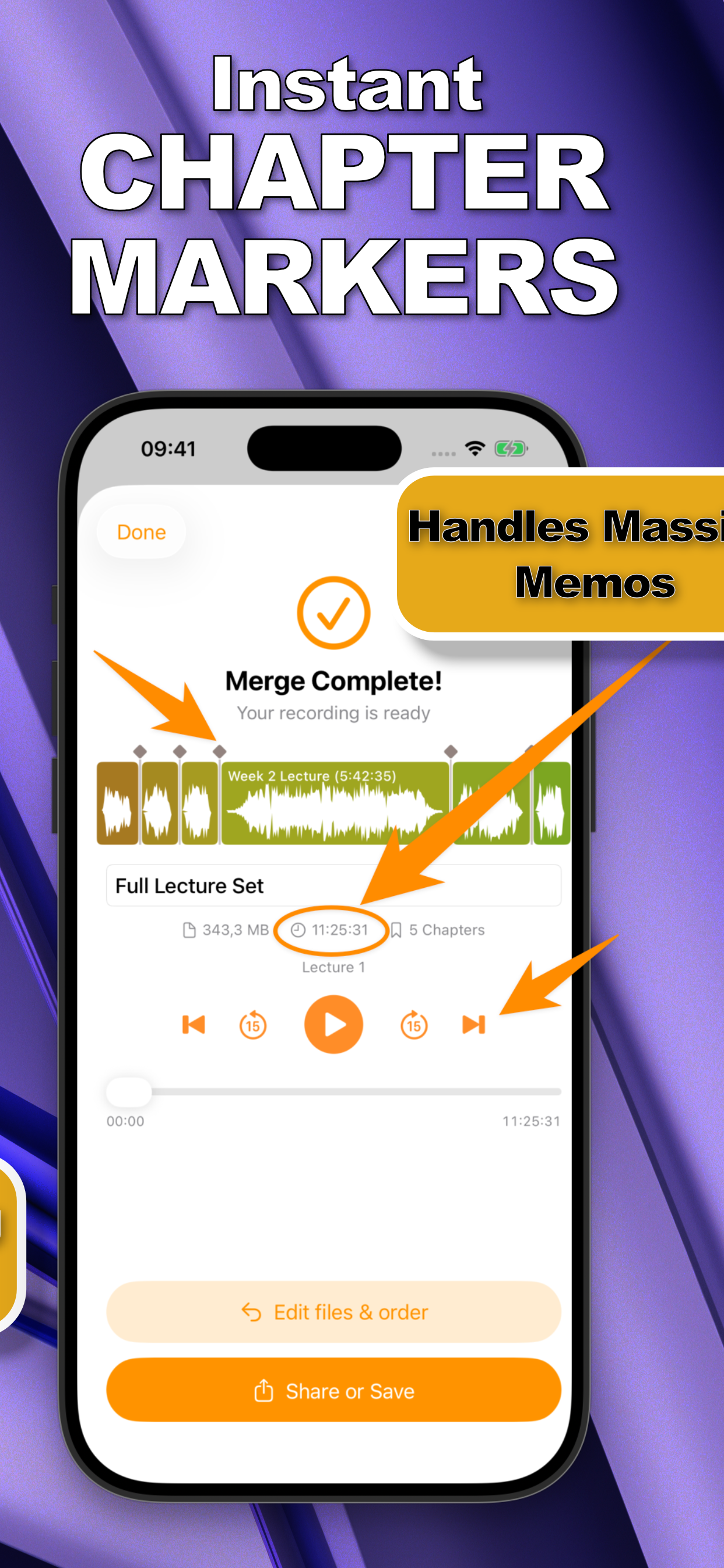
Merging M4A Without Re-Encoding Artifacts
SmartMerge's Dual-Engine processing joins M4A audio with zero quality loss, the merged file sounds exactly like the originals played back-to-back. That matters most for voice: compression artifacts show up first in speech sibilance and room tone. If pristine output is your priority, read merging without losing quality.
Can I Mix M4A and WAV in One Merge?
Yes. SmartMerge accepts both M4A and WAV in the same queue, so a phone-recorded memo can sit next to a field recorder's WAV file in one merged output.
Try it on your own recordings
SmartMerge is free to download with a fully unlocked 3-day free trial, merge your first files in the next two minutes.
Get SmartMerge on the App Store