 SmartMerge
WAV is the format of field recorders, audio interfaces, and anyone who refuses to compress. It's also the format most iPhone apps quietly fail on, because uncompressed audio is enormous, and enormous files cause memory crashes in apps that load everything into RAM at once.
WAV on iPhone: Big Files, Big Problem
A single hour of 44.1 kHz stereo WAV is roughly 600 MB. Merge three of those and many “audio joiner” apps die mid-process, taking your patience with them. This is exactly the failure SmartMerge's Dual-Engine system was built to avoid: it processes massive files safely instead of loading them whole into memory.
Merge WAV Files on iPhone (Step by Step)
- Get your WAV files onto the iPhoneAirDrop them from a recorder or computer, or save them to the Files app from any source: iCloud Drive, Dropbox, a USB-C drive.
- Share them to SmartMergeSelect the WAV files in Files, tap Share, and choose “Merge with SmartMerge.” They load straight into the merge queue.
- Sequence and trimDrag the takes into order. Auto-Trim can shave 2, 3, or 5 seconds off each clip's edges: handy for cutting the recorder-handling noise at the start of every take.
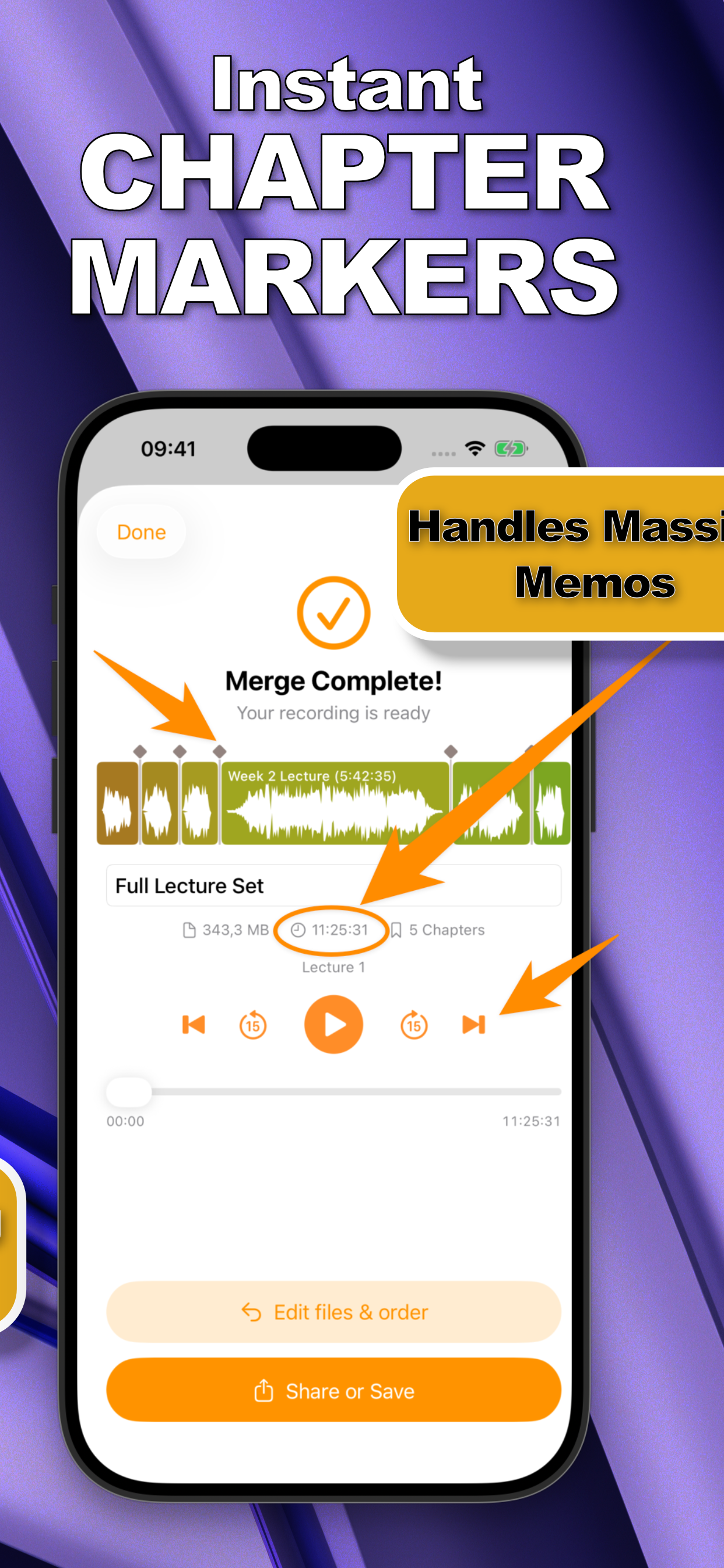
- Merge and export one fileTap Merge. SmartMerge outputs a single continuous file with chapter markers at every join, ready to share, upload, or archive.
Why File Size Crashes Other Apps (and Not This One)
Most mobile audio editors decode the entire timeline into memory. On a phone, three hours of WAV simply doesn't fit, so the app is killed by iOS mid-merge. SmartMerge streams the job through its Dual-Engine pipeline instead, which is why 4-hour session recordings and multi-take studio sessions merge reliably.
Keep It Lossless End to End
Merging WAV should never mean converting to MP3. SmartMerge joins your audio with zero quality loss; if you also work with compressed sources, see merging M4A files, both formats can even share one merge queue.
Try it on your own recordings
SmartMerge is free to download with a fully unlocked 3-day free trial, merge your first files in the next two minutes.
Get SmartMerge on the App Store