 SmartMerge
You recorded an interview in three parts, or a lecture that got split when a call came in, and now you need it as one file. If you've been hunting through the Voice Memos app for a “combine” button, you can stop: it isn't there.
This guide shows you the fastest way to merge voice memos on iPhone, entirely on your phone, with no computer, no GarageBand project, and no uploading private recordings to a website.
Why You Can't Merge Recordings in the Voice Memos App
Apple's Voice Memos app records, trims, and replaces sections of a single memo, but it has never offered a way to join two recordings together. The workarounds people usually find are painful: building a multi-track GarageBand project for a simple join, transferring files to a computer, or uploading personal audio to a free web tool of unknown ownership.
A dedicated voice memo joiner solves this with one trick the others can't match: a native share extension. Because SmartMerge lives inside the iPhone share sheet, merging starts right where your recordings already are.
How to Merge Voice Memos with SmartMerge (Step by Step)
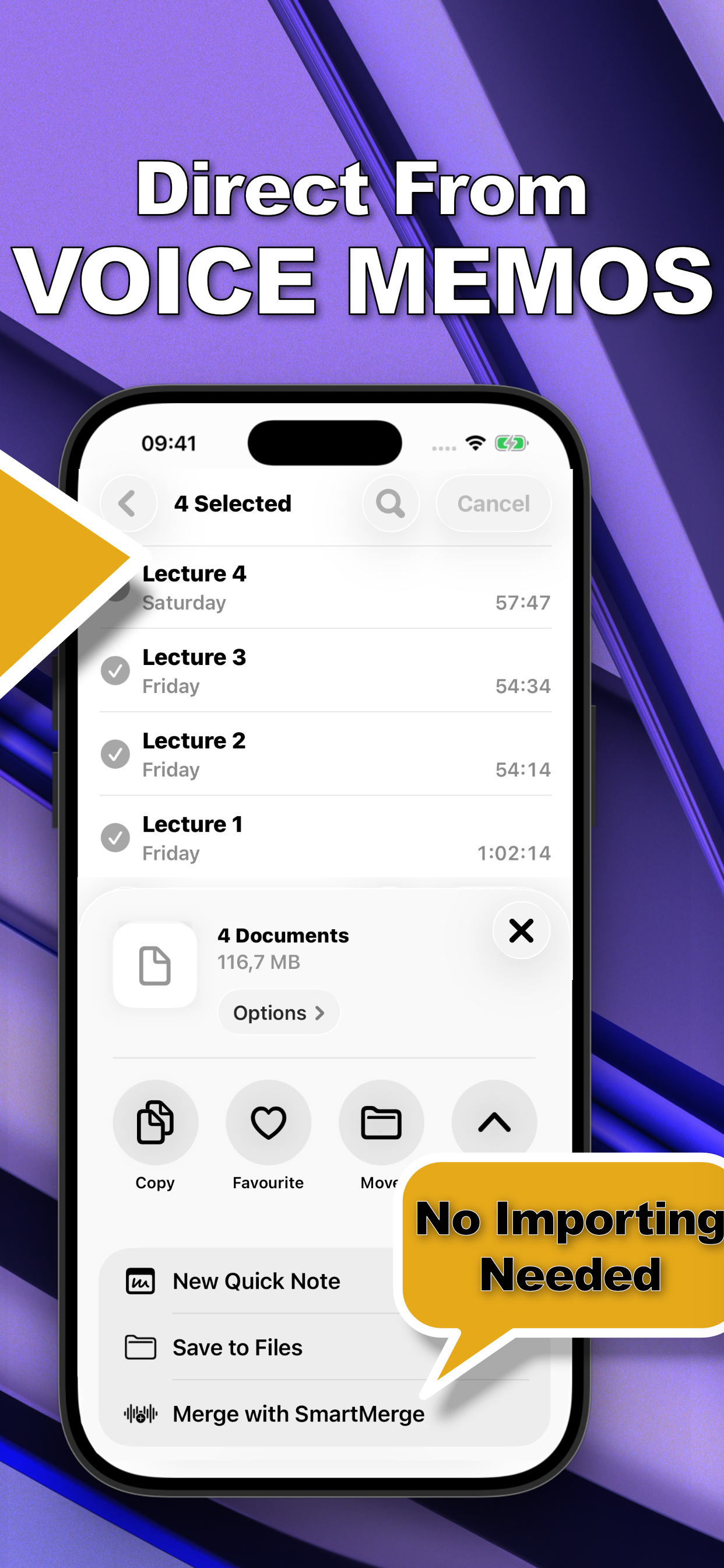
- Select your recordings in Voice MemosOpen Apple Voice Memos, tap Edit (or long-press a recording), and select every clip you want to join. You can pick as many as you need, SmartMerge handles hours of audio.
- Share to SmartMergeTap Share and choose “Merge with SmartMerge” from the share sheet. Your clips open in SmartMerge instantly, no exporting, no importing, no file juggling.
- Order your clips and set Auto-TrimDrag and drop the clips into the order you want. Optionally turn on Auto-Trim to cut 2, 3, or 5 seconds of mic fumbles and dead air from the start and end of every clip.
- Merge, then share or saveTap Merge. Seconds later you have one seamless audio file with a chapter marker where each clip begins, ready to share, save to Files, or archive.
What You Get After the Merge
The output is a single audio file, the same format and quality as your originals, with zero quality loss. SmartMerge also adds a chapter marker at the start of every original clip, so a merged three-part interview still behaves like three navigable parts inside one file.
Tips for a Clean Merged Recording
- Use Auto-Trim. The first seconds of most memos are fumbling and taps. Auto-Trim cuts 2, 3, or 5 seconds from every clip's edges in one pass.
- Check the order before merging. Voice Memos sorts newest-first; drag clips into chronological order in SmartMerge before you tap Merge.
- Rename the result. Give the merged file a real name (“Thesis Interview, Full”) so it's findable in Files later.
Try it on your own recordings
SmartMerge is free to download with a fully unlocked 3-day free trial, merge your first files in the next two minutes.
Get SmartMerge on the App Store